

MusConv easily imports your playlists and favorites from iHeartRadio to Ableton
Start now!




With MusConv you can easily transfer all your music from iHeartRadio to Ableton
How to transfer playlists from iHeartRadio to Ableton?
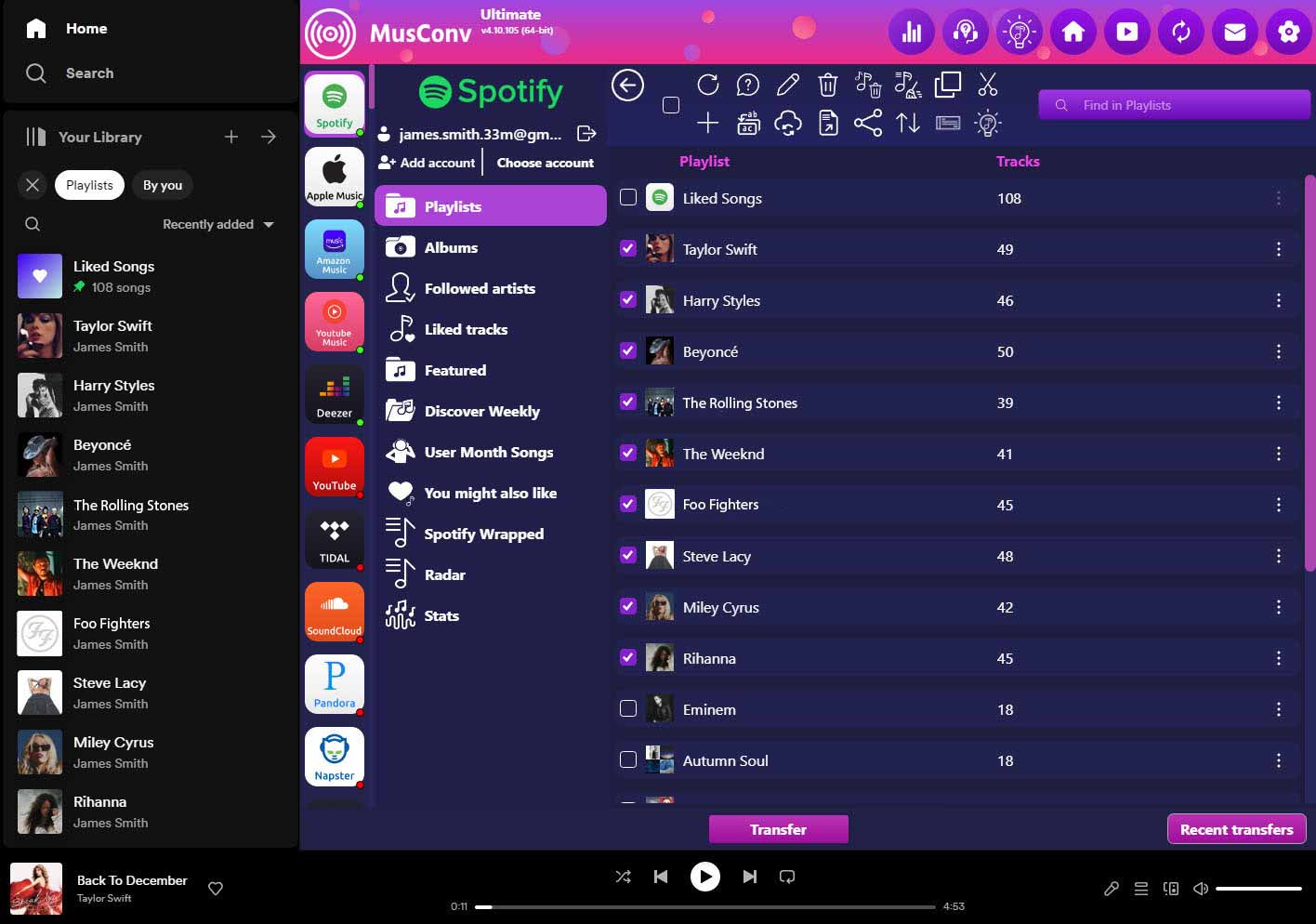
You need to complete 3 easy steps to transfer playlists from iHeartRadio to Ableton:
1 Select iHeartRadio as the source service

2 In the “Playlists” tab select playlists you want to transfer and click “Transfer”
3 Select Ableton as the destination service

Enjoy a cup of tea while MusConv works for you 😉 Once finished, your playlists and songs will be available on Ableton.
Move From iHeartRadio to Ableton – Video Tutorial
How to transfer albums from iHeartRadio to Ableton?
You need to complete 3 easy steps to transfer albums from iHeartRadio to Ableton:
1 Select iHeartRadio as the source service
2 In the “Albums” tab select albums you want to transfer and click “Transfer”
3 Select Ableton as the destination service
The transfer will start. Once finished, your albums will be available on Ableton.
How to transfer artists from iHeartRadio to Ableton?
You need to complete 3 easy steps to transfer artists from iHeartRadio to Ableton:
1 Select iHeartRadio as the source service
2 In “Artists” tab select artists you want to transfer and click “Transfer”
3 Select Ableton as the destination service
The transfer will start. Once finished, your artists will be available on Ableton.
How to transfer favorite tracks from iHeartRadio to Ableton?
You need to complete 3 easy steps to transfer favorite tracks from iHeartRadio to Ableton:
1 Select iHeartRadio as the source service
2 In “Tracks” tab select tracks you want to transfer and click “Transfer”
3 Select Ableton as the destination service
The transfer will start. Once finished, your favorite tracks will be available on Ableton.
Alternative method to transfer playlists and tracks from iHeartRadio to Ableton:
- Select the source service as iHeartRadio
- Select the playlists you want to copy
- Press “Transfer” and choose CSV file as the destination service
- Select the source service as just saved CSV file
- Press “Transfer” and select the destination service as Ableton
This method allows you to backup all your music data to a CSV file and use it at anytime to import to Ableton.
MusConv is a great playlist converter, just try it.


