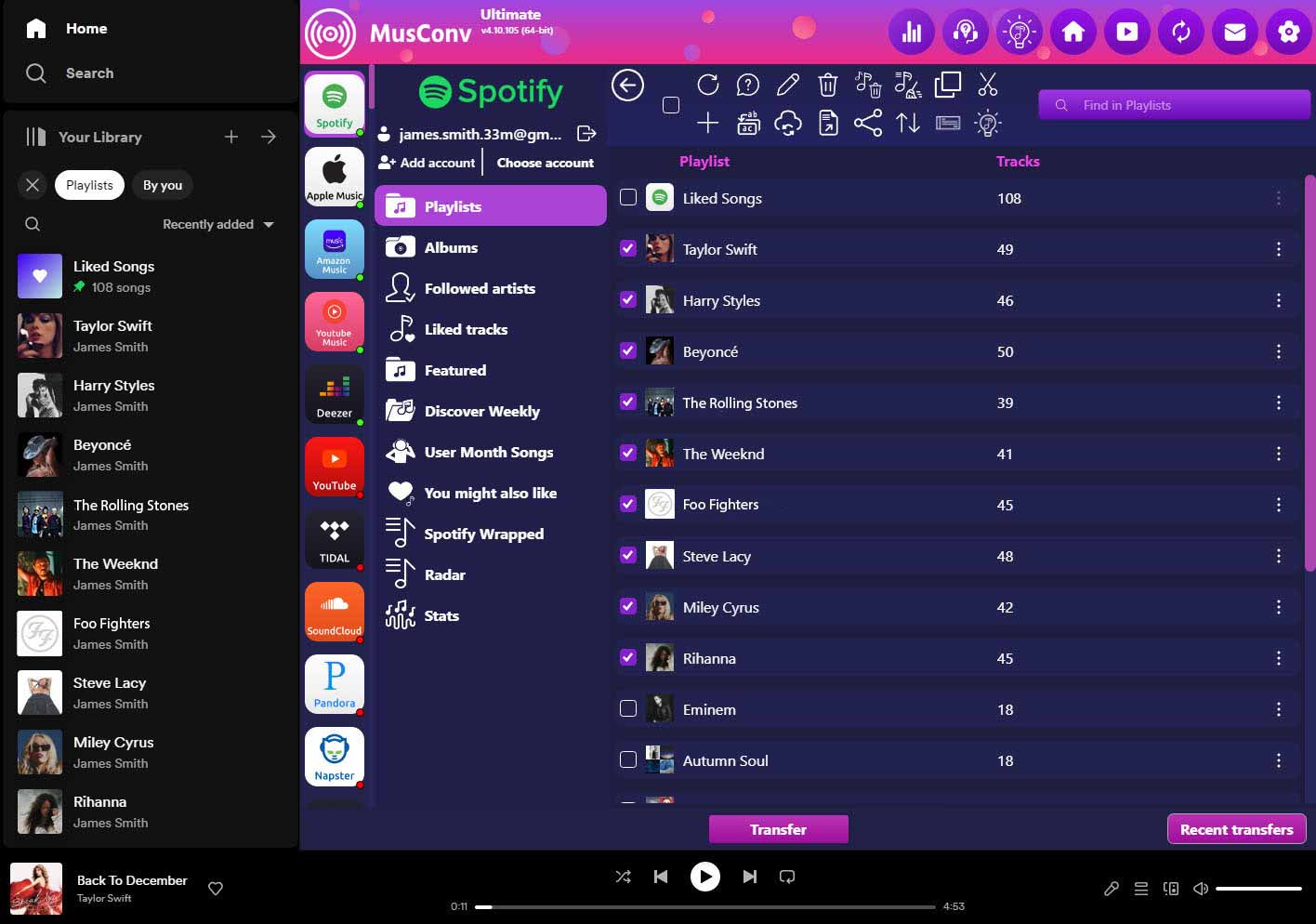
MusConv easily imports your playlists from Serato to CSV
Start now!


With MusConv you can easily transfer all your music from Serato to CSV
How to transfer playlists from Serato to CSV?
You need to complete 6 easy steps to transfer playlists from Serato to CSV:
1 Open the Serato website

2 Go to the playlist you want to export and Copy the URL (eg. https://serato.com/playlists/userID/mixDate)
3 When you publish playlist on Serato, please set it to ‘Public’ in the details
4 In MusConv, on left side of app click “Web URL”, enter Serato URLs, click “Submit”
5 In the “Playlists” tab select playlists you want to transfer and click “Transfer”
6 Select CSV as the destination service

Enjoy a cup of tea while MusConv works for you 😉 Once finished, your playlists and songs will be available on CSV.
Move From Serato to CSV – Video Tutorial