

MusConv easily imports your playlists and favorites from Shazam to GarageBand
Start now!


With MusConv you can easily transfer all your music from Shazam to GarageBand
How to transfer playlists from Shazam to GarageBand?
You need to complete 3 easy steps to transfer playlists from Shazam to GarageBand:
1 Select Shazam as the source service

2 In the “Playlists” tab select playlists you want to transfer and click “Transfer”
3 Select GarageBand as the destination service

Enjoy a cup of tea while MusConv works for you 😉 Once finished, your playlists and songs will be available on GarageBand.
Move From Shazam to GarageBand – Video Tutorial
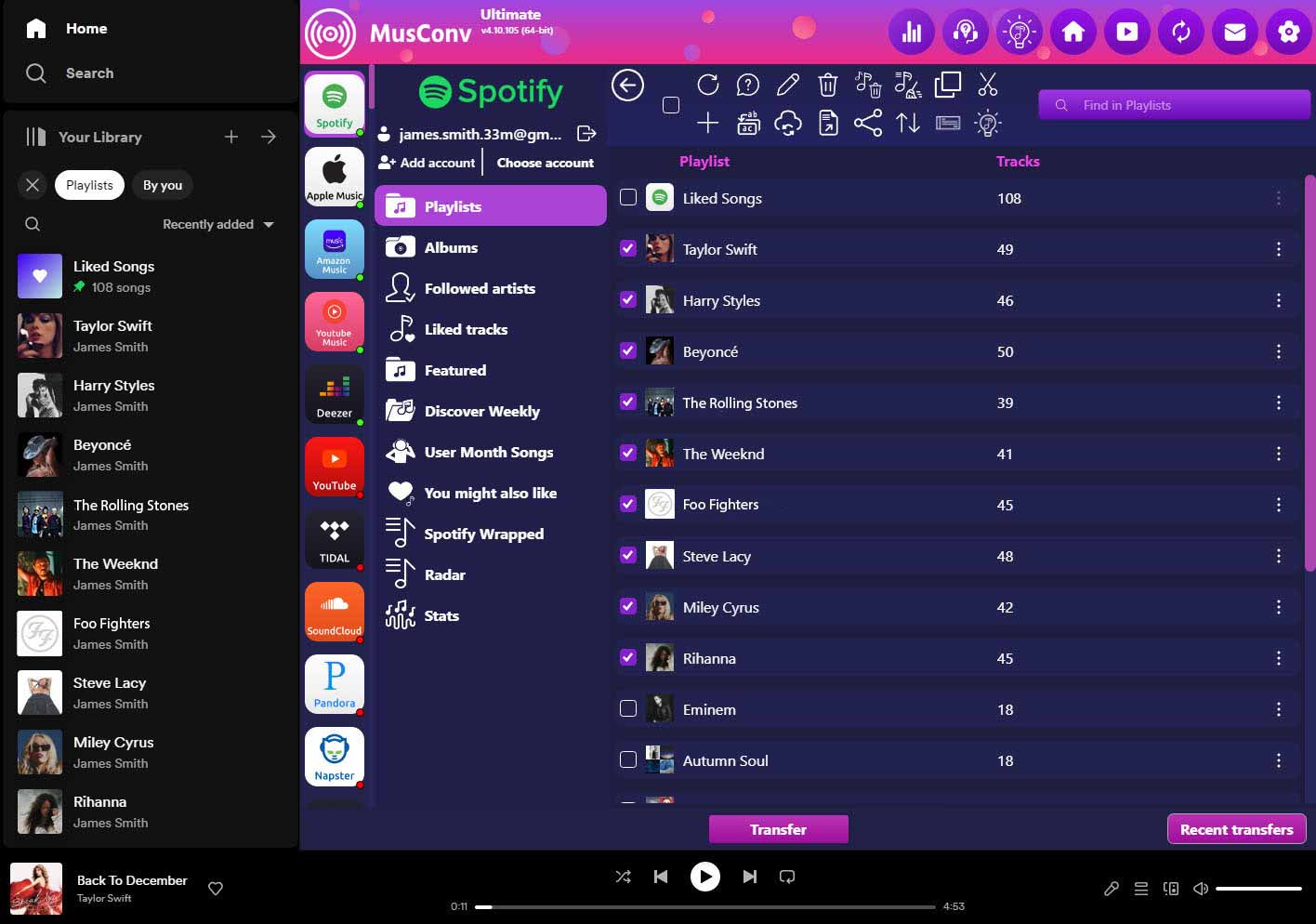
How to transfer albums from Shazam to GarageBand?
You need to complete 3 easy steps to transfer albums from Shazam to GarageBand:
1 Select Shazam as the source service
2 In the “Albums” tab select albums you want to transfer and click “Transfer”
3 Select GarageBand as the destination service
The transfer will start. Once finished, your albums will be available on GarageBand.
How to transfer artists from Shazam to GarageBand?
You need to complete 3 easy steps to transfer artists from Shazam to GarageBand:
1 Select Shazam as the source service
2 In “Artists” tab select artists you want to transfer and click “Transfer”
3 Select GarageBand as the destination service
The transfer will start. Once finished, your artists will be available on GarageBand.
How to transfer favorite tracks from Shazam to GarageBand?
You need to complete 3 easy steps to transfer favorite tracks from Shazam to GarageBand:
1 Select Shazam as the source service
2 In “Tracks” tab select tracks you want to transfer and click “Transfer”
3 Select GarageBand as the destination service
The transfer will start. Once finished, your favorite tracks will be available on GarageBand.
Alternative method to transfer playlists and tracks from Shazam to GarageBand:
- Select the source service as Shazam
- Select the playlists you want to copy
- Press “Transfer” and choose CSV file as the destination service
- Select the source service as just saved CSV file
- Press “Transfer” and select the destination service as GarageBand
This method allows you to backup all your music data to a CSV file and use it at anytime to import to GarageBand.


